

Master Financial Reporting Workflow for Small Businesses
Busy days and shifting priorities often leave Kansas City business owners scrambling to keep financial records consistent. Managing accurate reports with a lean team becomes a balancing act, especially when growth brings new expenses and tax concerns. This guide highlights practical steps for setting up QuickBooks Online, categorizing transactions, and reconciling accounts. Each step supports efficient financial reporting so you can stay focused on service and steady operations.
Table of Contents
- Step 1: Set Up Your QuickBooks Online Account Properly
- Step 2: Categorize Transactions Accurately Each Month
- Step 3: Reconcile Bank Accounts and Credit Cards Regularly
- Step 4: Generate and Review Profit and Loss Reports
- Step 5: Prepare and Organize Documents for Tax Season
Quick Summary
| Key Insight | Explanation |
|---|---|
| 1. Set Up Account Accurately | A proper setup prevents future financial reporting issues. |
| 2. Categorize Transactions Monthly | Regular categorization helps maintain accurate financial records and simplifies tax prep. |
| 3. Reconcile Accounts Regularly | Monthly reconciliation catches errors and prevents fraud, ensuring financial integrity. |
| 4. Review Profit and Loss Reports | P&L reports provide key insights for strategic business decisions and performance evaluation. |
| 5. Organize Documents for Tax Season | An organized approach simplifies tax filing and maximizes deductions, reducing stress during tax season. |
Step 1: Set Up Your QuickBooks Online Account Properly
Setting up your QuickBooks Online account correctly is the foundation for streamlined financial tracking and reporting for your small business. This crucial first step will help you configure your digital bookkeeping system with precision and clarity.
To begin, navigate to the QuickBooks Online website and select the appropriate subscription tier for your business size. QuickBooks offers cloud-based software ideal for small businesses that require remote access and flexible financial management. During the initial setup, you’ll need to provide key details about your business:
- Company name and legal structure
- Industry classification
- Business address and contact information
- Tax identification number
Next, customize your account settings to match your specific business needs. This includes:
- Configuring user permissions
- Setting up chart of accounts
- Establishing tax preferences
- Connecting business bank accounts
Accurate initial setup prevents headaches and ensures smooth financial reporting down the line.
Take time to explore the platform’s features and familiarize yourself with navigation. QuickBooks allows you to import existing financial data, which can save significant time during transition.
Here’s a quick summary of main account setup tasks in QuickBooks Online:
| Setup Task | Why It Matters | Potential Impact |
|---|---|---|
| User Permissions | Protects sensitive data | Reduces risk of errors |
| Chart of Accounts | Ensures proper categorization | Streamlines reporting |
| Tax Preferences | Supports compliance | Avoids costly mistakes |
| Bank Connection | Enables real-time tracking | Improves financial accuracy |
Pro Tip: Select a subscription level that provides the features you currently need, with room for future growth, to avoid unnecessary expenses.
Step 2: Categorize Transactions Accurately Each Month
Properly categorizing transactions in QuickBooks Online is crucial for maintaining accurate financial records and simplifying tax preparation for your small business. This monthly process ensures you have a clear understanding of your income, expenses, and overall financial health.
To begin, review all downloaded transactions from your linked bank and credit card accounts. QuickBooks Online makes this process streamlined by automatically importing transactions, but you’ll need to manually review and assign each one to the correct category. Focus on these key steps:
- Verify vendor and customer details
- Assign transactions to appropriate expense or income accounts
- Use the split transaction feature for complex entries
- Check for any duplicate transactions
Set up banking rules to automate recurring transaction categorizations for frequent vendors. This saves time and reduces the chance of manual errors. For example:
- Identify recurring transactions from utilities
- Create a rule to automatically categorize similar future transactions
- Review and confirm the automated categorizations monthly
Timely and accurate categorization is the backbone of reliable financial reporting.
Utilize QuickBooks’ credit card transaction tracking features to maintain precise records. Pay special attention to transactions that might span multiple expense categories, using the split function to allocate costs accurately.

Use this reference to understand common transaction categories and their business importance:
| Category Type | Example Transactions | Business Value |
|---|---|---|
| Income | Sales, service fees | Tracks revenue growth |
| Operating Expense | Rent, utilities, supplies | Monitors spending patterns |
| Asset Purchase | Equipment, vehicles | Helps in tax planning |
| Liability Payment | Loan, credit card payments | Maintains good credit history |
Pro Tip: Schedule a consistent monthly time slot for transaction categorization to prevent backlog and maintain up-to-date financial records.
Step 3: Reconcile Bank Accounts and Credit Cards Regularly
Reconciling your bank accounts and credit cards is a critical monthly task that ensures the financial accuracy and integrity of your small business. This process helps you catch potential errors, prevent fraud, and maintain crystal-clear financial records.
To begin, match bank statement transactions in QuickBooks Online with your actual bank and credit card statements. The reconciliation process involves several key steps:
- Compare statement balances with QuickBooks records
- Identify and investigate any discrepancies or unusual transactions
- Verify deposits, withdrawals, and bank fees
- Track outstanding checks or deposits in transit
Follow this systematic approach to reconciliation:
- Open the reconciliation tool in QuickBooks Online
- Enter the statement’s ending balance and date
- Review and check off matching transactions
- Investigate and resolve any differences
Consistent monthly reconciliation is your financial safety net.
Address potential accounting discrepancies by tracing errors, understanding timing differences, and making necessary adjustments to your accounting records. Pay close attention to small details that could indicate larger issues.
Pro Tip: Set a recurring calendar reminder for reconciliation to maintain financial discipline and catch potential issues early.
Step 4: Generate and Review Profit and Loss Reports
The Profit and Loss (P&L) statement is your business’s financial report card, revealing critical insights about your company’s financial health and performance. Understanding this report allows you to make strategic decisions and optimize your business operations.
In QuickBooks Online, generating a P&L report involves several key steps:
- Select the reporting section in QuickBooks
- Choose the Profit and Loss report
- Set appropriate date ranges for analysis
- Customize report view and filters
Follow this systematic approach to generate and review your report:
- Navigate to the reports dashboard
- Select standard Profit and Loss report
- Set date range (monthly, quarterly, annually)
- Review key financial metrics
- Compare current period to previous periods
Your P&L report is a strategic tool for understanding business performance.
Pay close attention to key reporting parameters such as income sources, direct expenses, and operating costs. Look for trends, unexpected changes, and opportunities to improve financial efficiency.
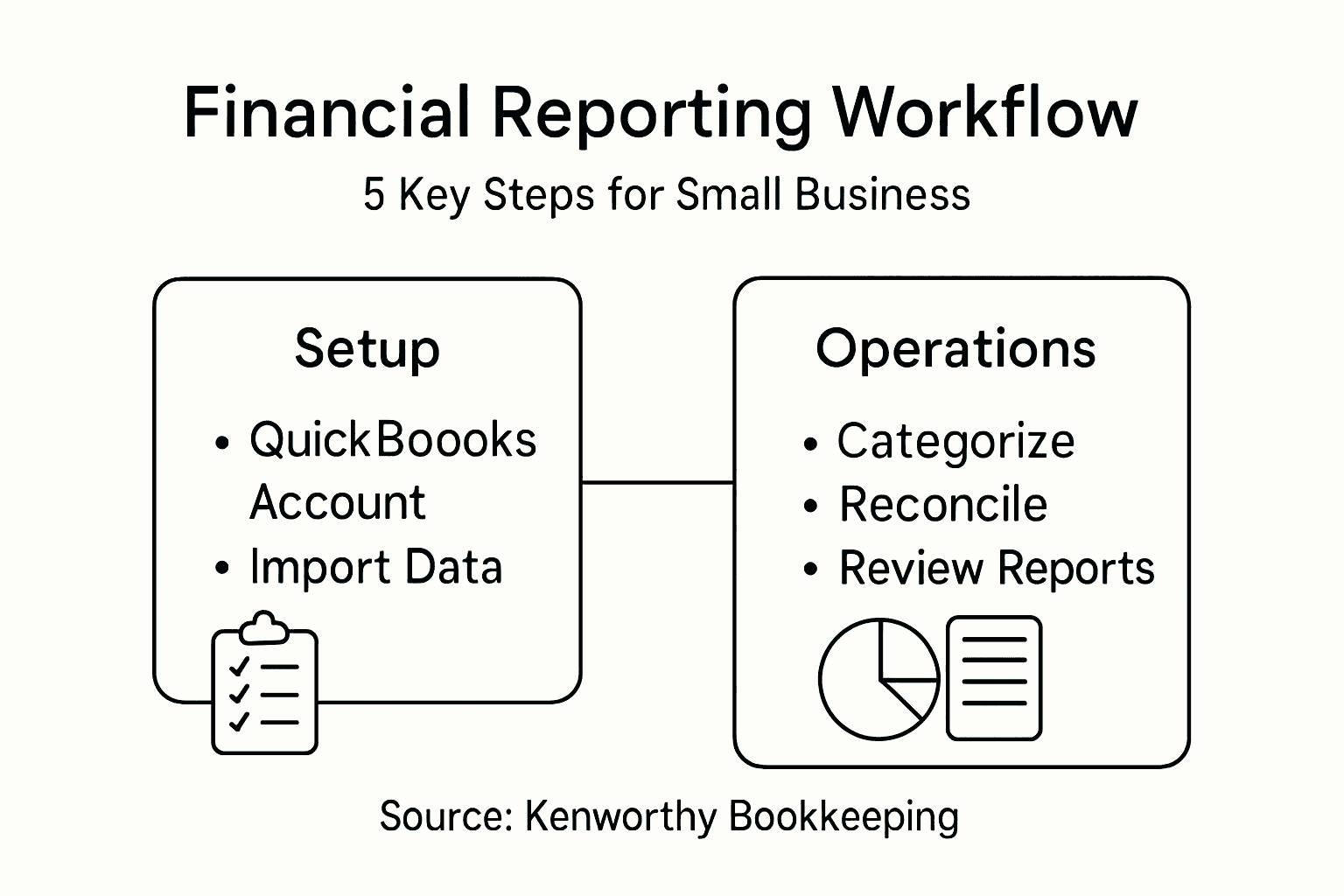
Pro Tip: Schedule quarterly deep-dive analysis sessions to transform your P&L from a financial document into a strategic planning tool.
Step 5: Prepare and Organize Documents for Tax Season
Preparing and organizing your business documents for tax season is critical to ensure smooth filing, maximize potential deductions, and maintain financial compliance. A systematic approach will help you navigate this important annual process with confidence and accuracy.
Maintaining organized financial records is essential for small business tax preparation. Gather and organize the following key documents:
- Income documentation
- Expense receipts
- Bank statements
- Payroll records
- Previous tax returns
Follow these strategic steps for comprehensive tax document preparation:
- Create a dedicated digital filing system
- Scan and backup all physical documents
- Separate personal and business expenses
- Compile year-end financial statements
- Collect 1099 and W-2 forms
Consistent organization throughout the year simplifies tax season dramatically.
Consider leveraging technology tools to streamline your document management. Digital platforms can help track expenses, store receipts, and maintain clean financial records that make tax preparation more efficient.
Pro Tip: Develop a monthly document collection habit to prevent last-minute scrambling during tax season.
Take Control of Your Small Business Finances with Expert QuickBooks Online Support
Managing your financial reporting workflow can feel overwhelming. From setting up your QuickBooks Online account correctly to categorizing transactions, reconciling accounts, and preparing for tax season every step requires precision and regular attention. If you find yourself struggling to maintain accurate records or run insightful Profit and Loss reports that reveal your business’s true health you are not alone. Common challenges include spending too much time on bookkeeping tasks, risk of errors in bank reconciliations, or missing critical tax document organization.
Kenworthy Bookkeeping understands these pain points and offers a tailored solution designed specifically for small businesses in the Kansas City area. Our expert team ensures your QuickBooks Online is set up properly with accurate transaction categorization and thorough monthly reconciliations. We generate clear financial reports to help you make informed decisions that increase profitability while eliminating the stress and uncertainty of bookkeeping.

Ready to regain control of your business finances and stop worrying about the complexities of bookkeeping? Visit Kenworthy Bookkeeping’s expert consultation page now to learn how our comprehensive services including transaction categorization, bank reconciliation, Profit and Loss reporting, and tax season preparation can work for you. Act today to experience bookkeeping that is effortless, precise, and trusted.
Frequently Asked Questions
How do I set up my QuickBooks Online account for financial reporting?
Start by visiting the QuickBooks Online website and selecting the right subscription tier for your business. Provide all necessary details such as your company name, tax identification number, and bank account connections to create a solid foundation for financial tracking.
What are the key tasks for categorizing transactions in QuickBooks Online?
Focus on reviewing all downloaded transactions from linked accounts and assigning each to the correct income or expense category. Use the split transaction feature for complex entries and set up banking rules to automate categorizations for recurring transactions.
How often should I reconcile my bank accounts and credit cards?
You should reconcile your bank accounts and credit cards monthly to ensure accuracy in your financial records. To do this, compare your QuickBooks records with your bank statements, check off matching transactions, and investigate any discrepancies promptly.
What should I look for when generating a Profit and Loss report?
When generating a Profit and Loss report, pay close attention to key financial metrics such as income sources, direct expenses, and operating costs. Analyze trends and compare current performance against previous periods to identify opportunities for business improvement.
How can I prepare my business documents for tax season?
To prepare for tax season, gather all necessary documents like income documentation, expense receipts, and prior tax returns. Create a digital filing system and consistently organize your records throughout the year to simplify the filing process and maximize deductions.
Recommended
- Why Generate Financial Reports for Small Businesses
- Why Prepare Financial Statements for Small Businesses
- Business Financial Statements Guide for Small Businesses – Kenworthy Bookkeeping Blog
- Master Budget Planning Workflow for Small Businesses – Kenworthy Bookkeeping Blog
- SOX Compliance Checklist 2026: Ensure Full Regulatory Readiness
- Financial & Banking – 40Q