

How to create a financial snapshot in QuickBooks Online
Knowing exactly where your business stands financially can mean the difference between catching a cash flow problem early and being blindsided by it. For small business owners in Kansas, a clear financial snapshot gives you the confidence to make smarter decisions, even when the economy feels unpredictable. QuickBooks Online makes this process more accessible than most people realize. You do not need to be an accountant to pull together a reliable picture of your finances. This article walks you through every step, from understanding what a financial snapshot is, to building one, verifying it, and using it to drive real profitability.
Table of Contents
- What is a financial snapshot and why does it matter?
- What you need before starting in QuickBooks Online
- Step-by-step: Building your financial snapshot in QuickBooks Online
- Troubleshooting: Common mistakes and how to fix them
- Verifying and maximizing the impact of your snapshot
- Expert perspective: Why most owners misuse financial snapshots
- Take the next step for financial clarity
- Frequently asked questions
Key Takeaways
| Point | Details |
|---|---|
| Know what to prepare | Gather bank records and software access before starting to make the snapshot process smooth. |
| Follow step-by-step instructions | QuickBooks Online’s tools make snapshot creation straightforward when you follow best practices. |
| Check for errors | Always review your data for accuracy to ensure your snapshot truly reflects your business health. |
| Leverage for strategy | Use your snapshot for ongoing forecasting, decision-making, and stakeholder communication. |
What is a financial snapshot and why does it matter?
A financial snapshot is a point-in-time summary of your business’s financial position. Think of it as a photograph of your money. It captures where your income is coming from, what you are spending, what you own, what you owe, and how cash is moving through your business.
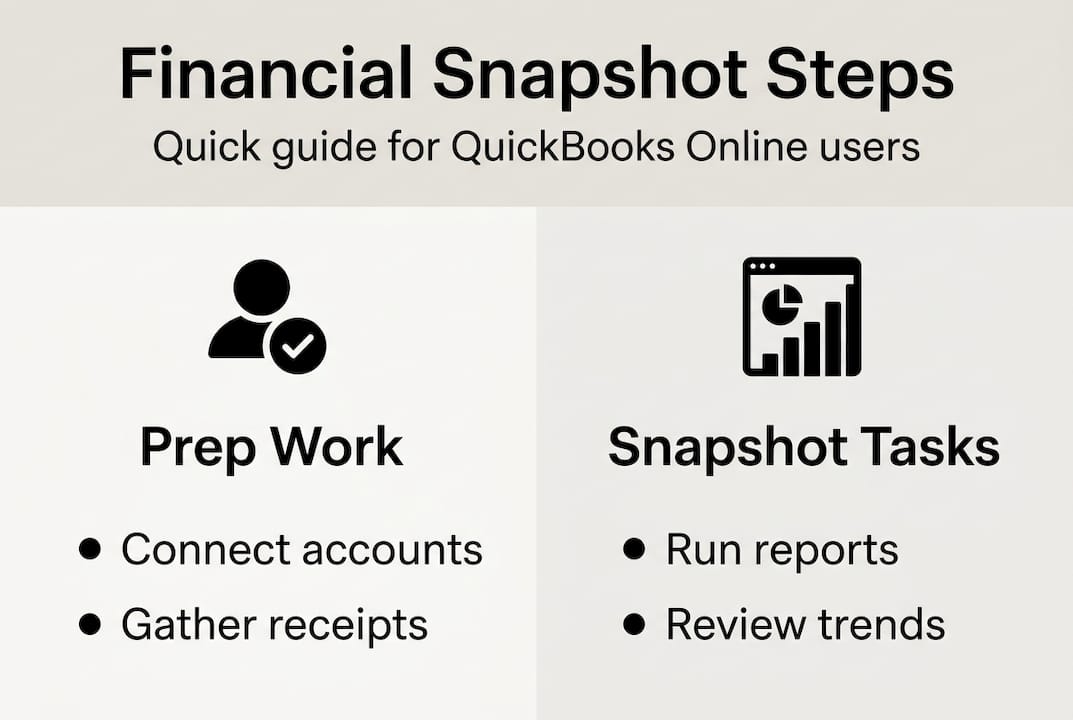
The core components of a financial snapshot include:
- Income: Revenue earned from sales or services
- Expenses: Costs incurred to run the business
- Assets: What the business owns, including equipment and receivables
- Liabilities: What the business owes, such as loans or unpaid bills
- Cash flow: The movement of money in and out over a period
Without a current snapshot, you are making decisions based on guesswork. Many Kansas small business owners only look at their numbers at tax time, which is far too late to course-correct. A financial health assessment done regularly gives you the power to spot trends before they become problems.
When revenue dips, a snapshot tells you whether expenses are the culprit, whether a specific service line is underperforming, or whether your receivables are piling up. That clarity drives better management decisions. Understanding the basics of financial statements also helps you interpret what your snapshot is telling you.
Combining financial snapshots with forecast reports is crucial for understanding profitability trends, especially when small business revenues fluctuate.
A snapshot is not just a reporting exercise. It is a management tool. Used consistently, it keeps you in control of your business rather than reacting to surprises.
What you need before starting in QuickBooks Online
Before you build your snapshot, gather everything you need. Jumping in without the right data leads to gaps and inaccurate results. Here is a checklist to get you ready.
Data and access requirements:
- Connected bank and credit card accounts in QuickBooks Online
- All transactions entered and categorized up to the current date
- Basic business information confirmed (legal name, fiscal year start)
- Correct QuickBooks Online permission level (you need at least Standard or Admin access to run full reports)
- Supporting documents organized: receipts, invoices, and bank statements
| Requirement | Why it matters |
|---|---|
| Connected accounts | Ensures all transactions are captured automatically |
| Up-to-date transactions | Prevents gaps that distort your snapshot |
| Correct permissions | Allows access to all necessary report types |
| Organized documents | Supports data validation and audit readiness |
| Confirmed business info | Ensures reports reflect the correct entity and period |
As a best financial reporting tool for small businesses, QuickBooks Online stands out for its accessibility and built-in reporting features. But the tool is only as good as the data you feed it.
You can also review your finance management tools to confirm QuickBooks Online is set up to support your specific business needs. If you want a broader readiness check, the financial health checklist is a great starting point.
Pro Tip: Keep a dedicated folder, digital or physical, for receipts and invoices organized by month. When your supporting documents match your QuickBooks data, your snapshot becomes far more reliable and audit-ready.
Step-by-step: Building your financial snapshot in QuickBooks Online
With your data ready, follow these steps to build a clear, actionable financial snapshot.
- Log in and navigate to Reports. From your QuickBooks Online dashboard, click on “Reports” in the left-hand menu.
- Run your Profit and Loss report. Search for “Profit and Loss” and select your desired date range. Monthly or quarterly views work well for regular snapshots. This shows your income versus expenses.
- Run your Balance Sheet report. Search for “Balance Sheet” and use the same date range. This captures your assets, liabilities, and equity at a specific point in time.
- Run your Statement of Cash Flows. This report shows how cash moved through your business during the period. It rounds out the picture your P&L and Balance Sheet provide.
- Customize each report. Use the “Customize” button to filter by account, class, or location if needed. Adjust columns to show the comparison periods that matter to you.
- Export and centralize your data. Export each report as a PDF or Excel file. Store them in one folder labeled by period so you can track changes over time.
- Save your report views. After customizing, click “Save customization” so you can rerun the same report setup next month without starting over.
Building a consistent financial reporting workflow makes this process faster each time. Pairing it with a structured monthly review process helps you stay on top of trends without it feeling like a chore.

Pro Tip: Use QuickBooks Online’s built-in comparison feature to view this month versus last month, or this year versus last year. Combining snapshots into Management Reports enables stakeholder visibility and makes trend tracking much simpler.
Troubleshooting: Common mistakes and how to fix them
Even with the best intentions, errors creep in. Knowing what to look for saves you from acting on bad data.
Common mistakes and their fixes:
- Missed transactions: If a bank account is not connected or a manual entry was skipped, your totals will be off. Fix this by reconciling each account monthly.
- Duplicate transactions: These happen when you import transactions and also enter them manually. Run a transaction report filtered by amount to spot duplicates quickly.
- Incorrect categorization: Labeling a loan repayment as an expense, for example, skews both your P&L and Balance Sheet. Review your chart of accounts and reclassify as needed.
- Unreconciled accounts: If your accounts are not reconciled, your snapshot may not match your actual bank balances.
| Error | Symptom | Fix |
|---|---|---|
| Missed transactions | Totals lower than expected | Reconnect accounts, run reconciliation |
| Duplicate entries | Inflated expenses or income | Filter transactions, delete duplicates |
| Wrong categorization | Distorted P&L or Balance Sheet | Review chart of accounts, reclassify |
| Unreconciled accounts | Snapshot does not match bank | Complete monthly bank reconciliation |
Without careful data validation, financial snapshots may misrepresent profitability and lead to poor business decisions.
For help interpreting financial statements after corrections, revisit the basics to make sure you are reading the numbers correctly. Strong financial planning starts with clean, validated data.
Verifying and maximizing the impact of your snapshot
Building the snapshot is only half the job. Verifying it and putting it to work is where the real value shows up.
Steps to validate your snapshot:
- Cross-check your QuickBooks balances against your actual bank and credit card statements
- Confirm that your net income on the P&L matches the retained earnings change on your Balance Sheet
- Review any large or unusual transactions to confirm they are categorized correctly
- Ask a bookkeeper or advisor to spot-check your reports if you are unsure
Once validated, use your snapshot to build a simple trend table. Track key metrics month over month.
| Metric | January | February | March | Trend |
|---|---|---|---|---|
| Total revenue | $18,000 | $19,500 | $17,800 | Slight dip |
| Total expenses | $12,000 | $12,400 | $13,100 | Rising |
| Net profit | $6,000 | $7,100 | $4,700 | Declining |
| Cash on hand | $9,500 | $10,200 | $8,300 | Watch closely |
This kind of table makes it easy to spot when expenses are creeping up or when profit is slipping. Use comparisons and forecasts to understand profitability trends, especially given the revenue pressures many small businesses face today.
Your snapshot also becomes a communication tool. Share it with your accountant before tax season, present it to a lender when seeking financing, or use it to show a business partner where things stand. Learning more about bookkeeping in forecasting growth can help you take this data even further.
Expert perspective: Why most owners misuse financial snapshots
Here is something most articles will not tell you. The biggest problem with financial snapshots is not building them incorrectly. It is treating them as a one-time event rather than an ongoing conversation.
We see it regularly. A business owner pulls a snapshot in December, feels reassured, and does not look again until the following year. By then, a slow bleed in expenses or a receivables problem has grown into something much harder to fix. Automated tools like QuickBooks Online are powerful, but they can create a false sense of security if you are not actively reviewing what they produce.
The owners who truly benefit from financial snapshots are the ones who use them to ask questions, not just get answers. They sit down monthly with their bookkeeper or advisor and say, “Why did expenses rise here? What does this cash dip mean for next quarter?” That dialog is where real business improvement happens.
A financial health assessment reviewed with a professional turns a static report into a strategic tool. The snapshot is the starting point, not the finish line.
Pro Tip: Schedule a recurring monthly calendar block to review your snapshot with your bookkeeper. Consistency turns this from a task into a habit that genuinely protects your business.
Take the next step for financial clarity
You now have a clear path to building, verifying, and using a financial snapshot in QuickBooks Online. But knowing the steps and having the confidence to act on them are two different things.
At Kenworthy Bookkeeping, we work with Kansas small business owners to make this process effortless. From categorization and bank reconciliations to P&L reports and tax season preparation, we handle your books like they are our own business. A personalized bookkeeping consultation gives you expert eyes on your numbers and a clear action plan for improving profitability. Schedule a consultation today and take control of your financial picture with confidence.
Frequently asked questions
What is a financial snapshot in QuickBooks Online?
A financial snapshot is a summary of your business’s financial position at a specific point in time, built from key QuickBooks Online reports like the P&L, Balance Sheet, and Cash Flow Statement. As noted by Woodard, a snapshot combines core reports for an at-a-glance business view.
How often should I create a financial snapshot?
Aim to prepare a financial snapshot every month. Monthly reviews help you catch issues early, track trends over time, and make informed decisions before small problems become costly ones.
What is the biggest mistake to avoid when building a snapshot?
Skipping data validation is the most common and costly mistake. Errors in your data will undermine the entire snapshot and lead to inaccurate insights that hurt your business decisions.
Can I share my financial snapshot with stakeholders?
Yes. You can combine snapshots into Management Reports within QuickBooks Online and share them directly with your accountant, lender, or business partners for clearer communication and better decision-making.